Introduction
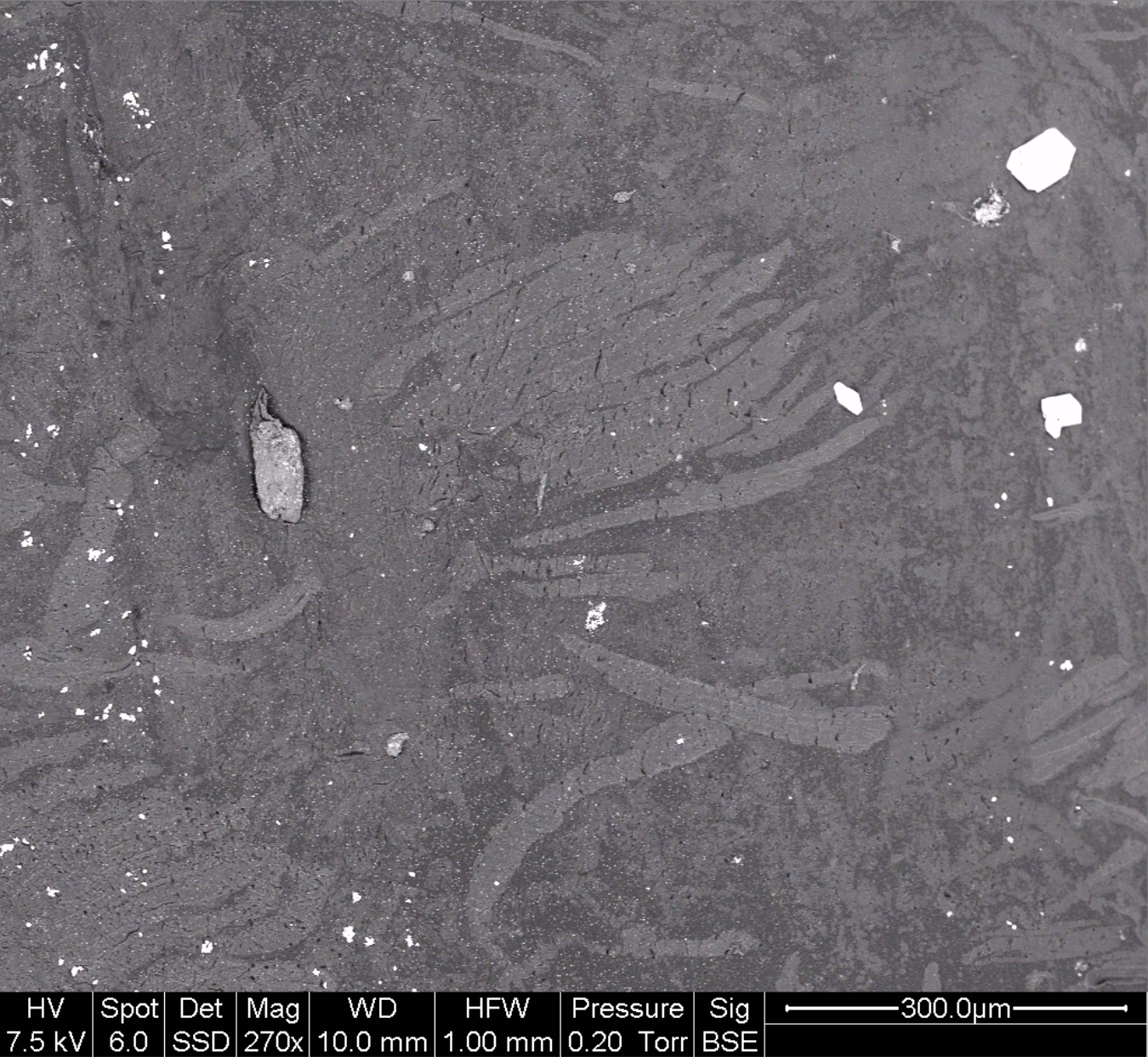
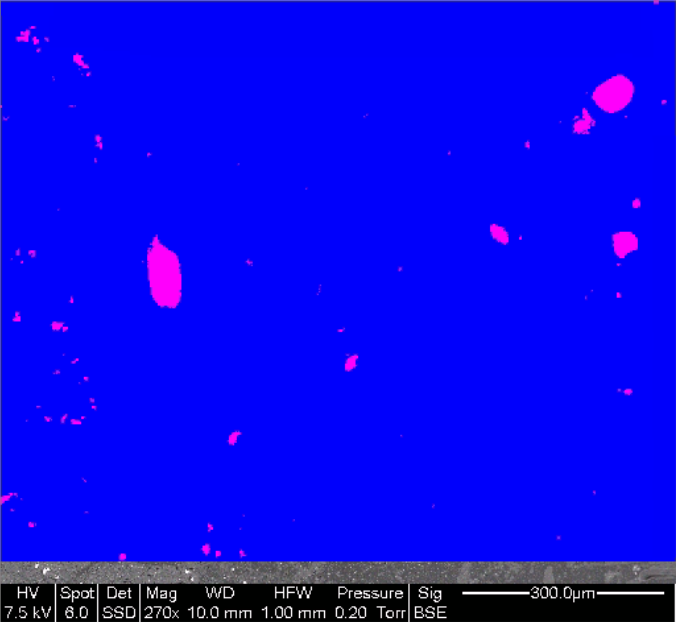
Rubber SEM images are introduced in this note to address the common problem that the traditional thresholding method can not solve. Due to the color similarity, the traditional thresholding method is unable to characterize all features effectively. Thanks to the developed machine learning algorithm in Clemex Studio, different features can be identified efficiently through additional annotations and trainings.
Phase identification in Clemex Studio
1. Create two classes (Rubber and Artifact) by clicking "plus sign" button, respectively.
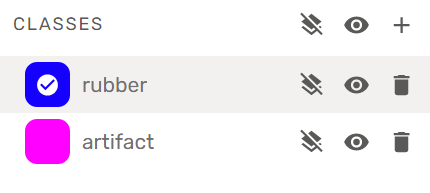
2. Apply one annotation for each class.
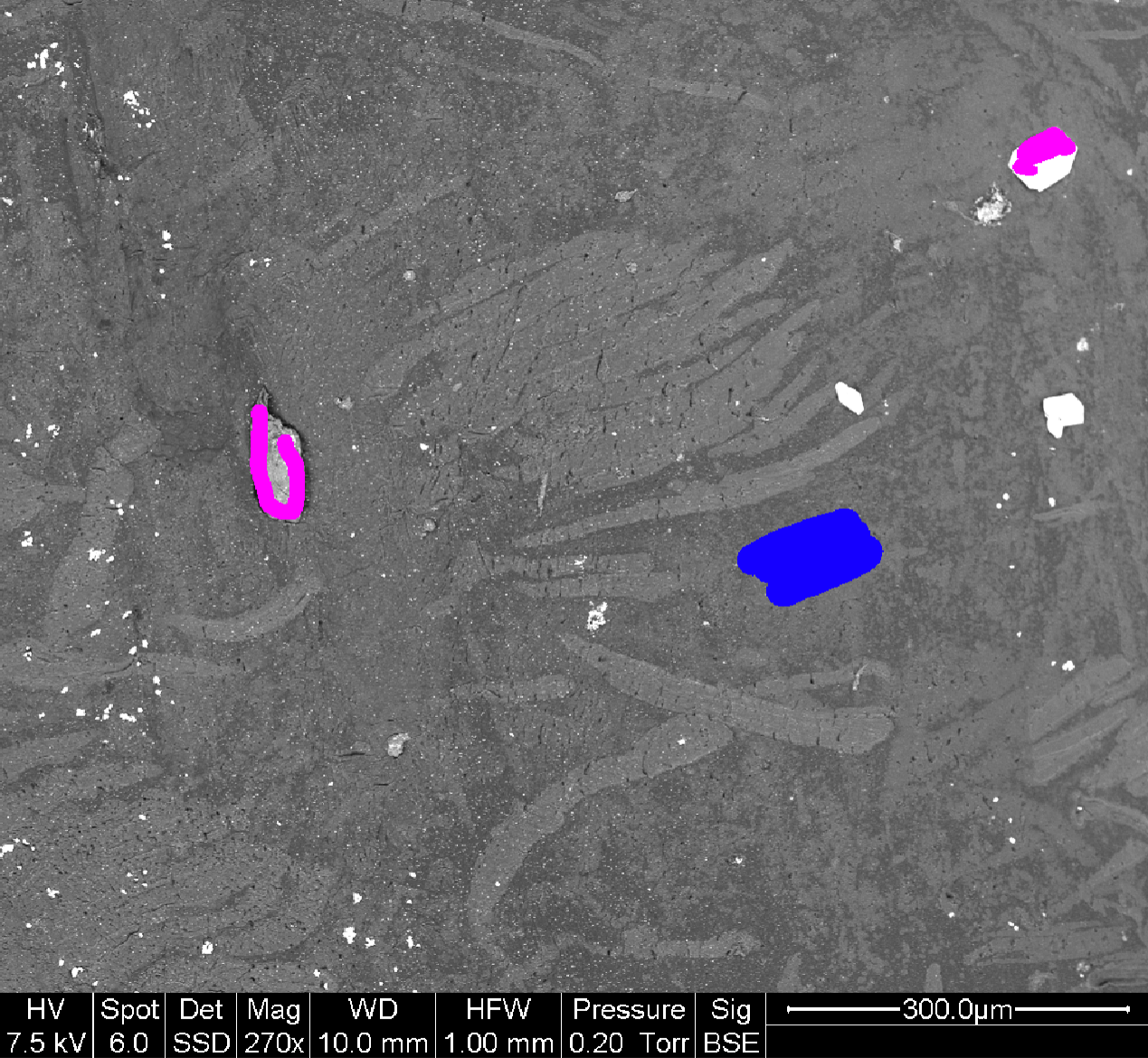
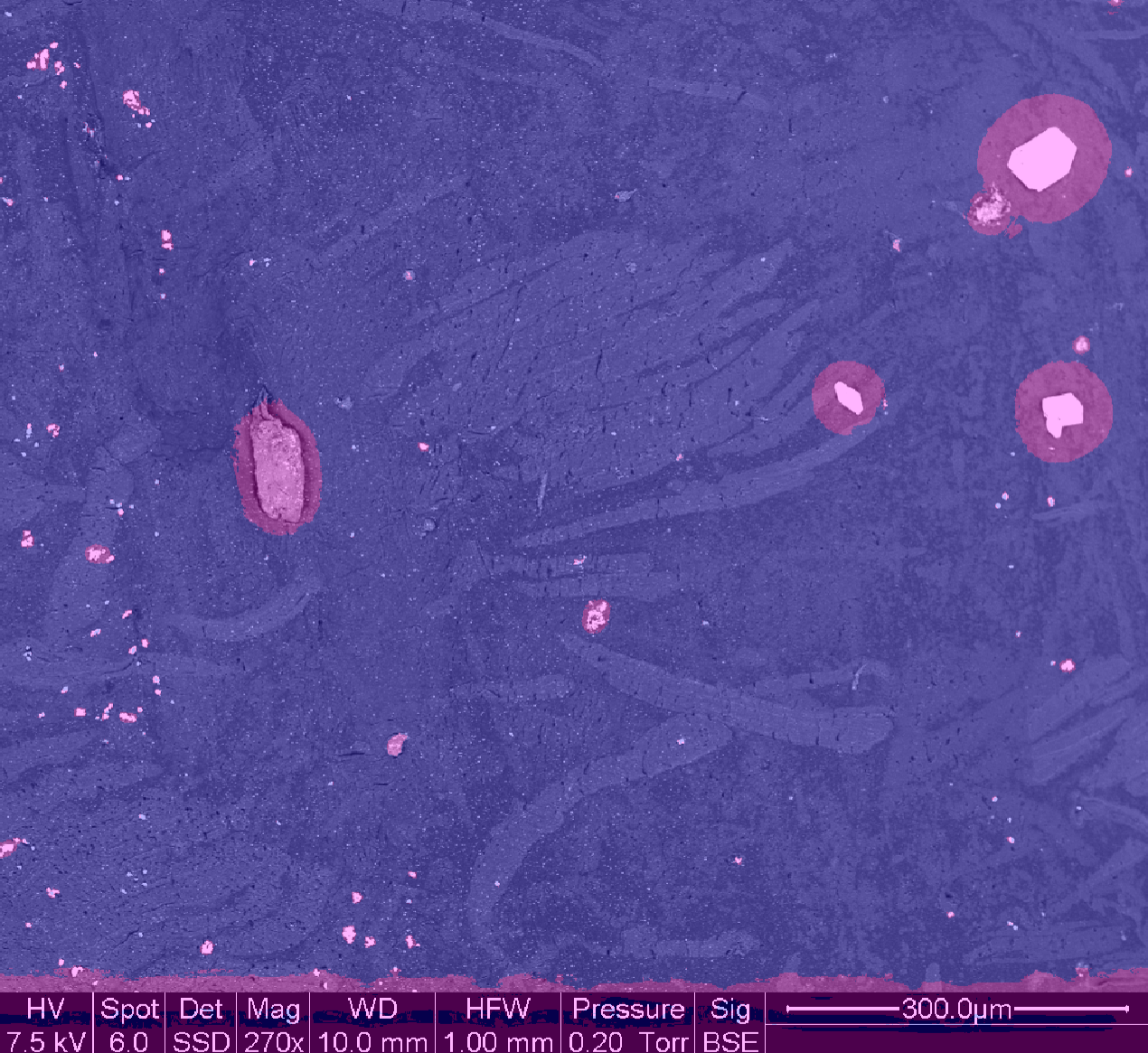
3. Click TRAIN button to train the Algorithm and preliminary annotation results are then shown.

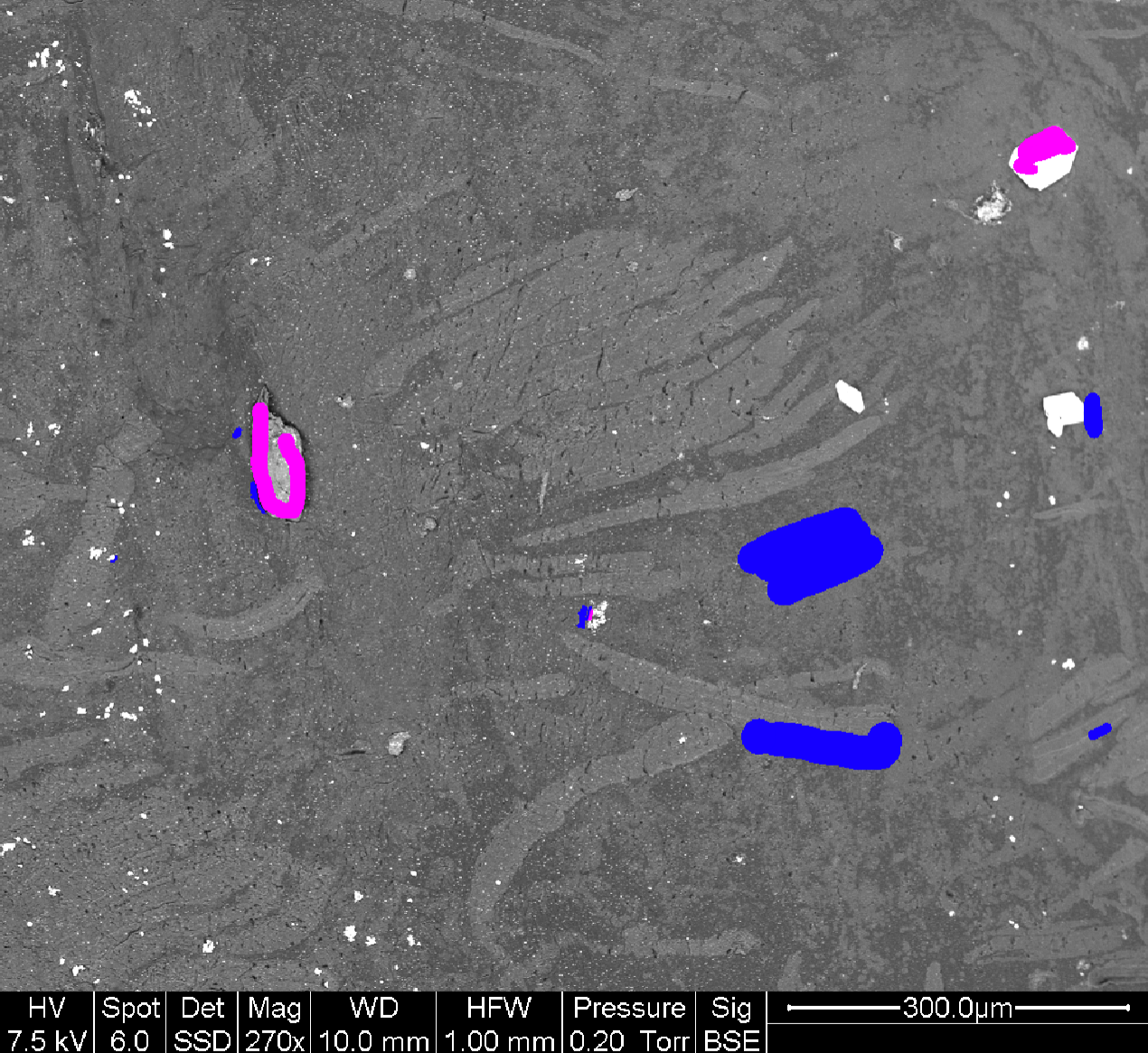
4. Fine tune the results by applying additional annotations at phase interaction region (left); and the final annotation can be obtained (right). The SEM info section can be neglected by process frame in Clemex Vision.
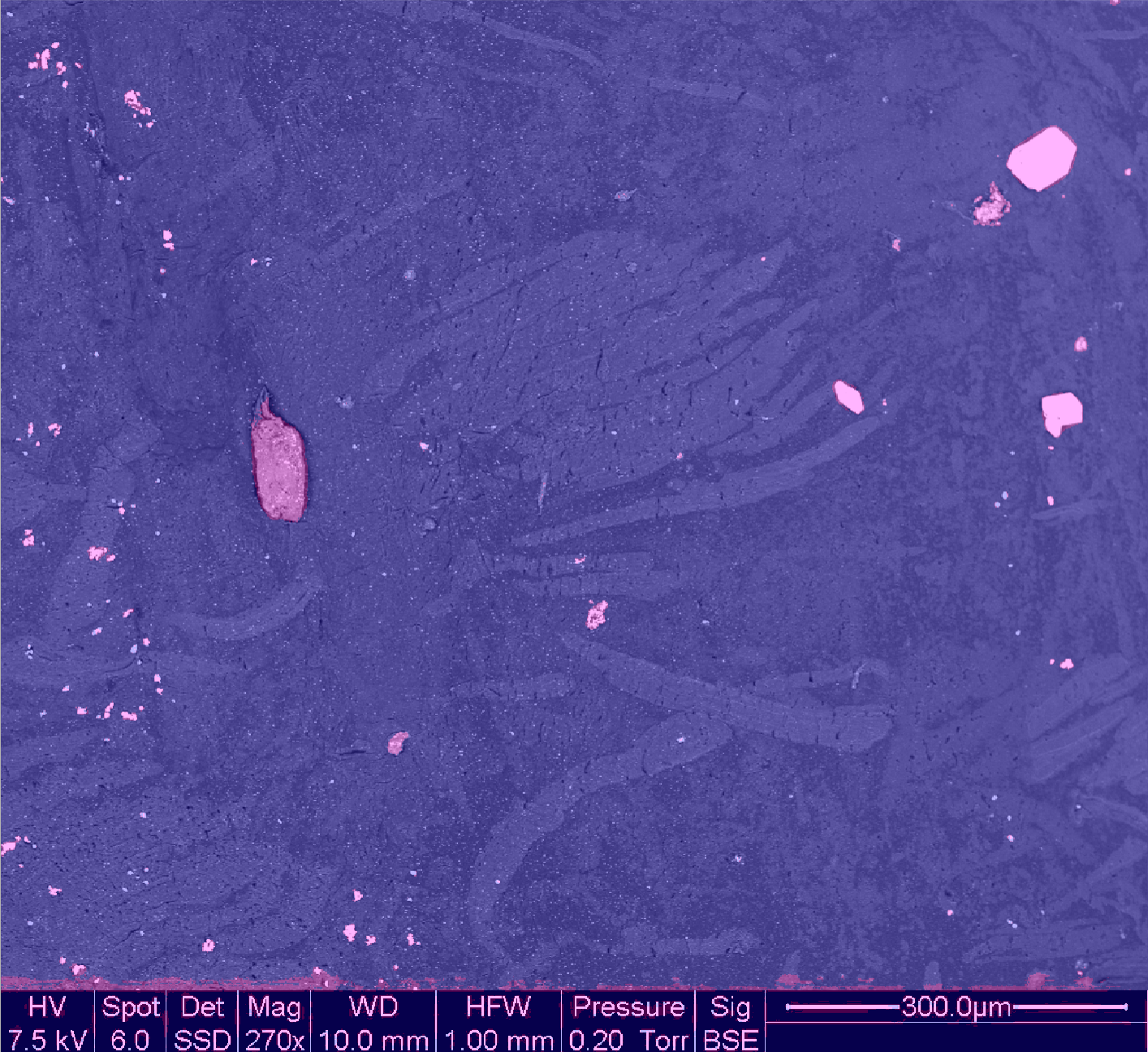
5. Validate results and download plugin by clicking DOWNLOAD button to be used in Vision for further analysis.

Quantitative measurement in Clemex Vision
- Copy/paste plugin to C:\IAFiles\Plugins
- Open Clemex Vision
- Open PhaseAnalysis.routine from C:\IAFiles\Application Packages\PhaseAnalysis\ClemexStudioRoutineTemplate
- Load images and insert correct plugin
- Run the routine to obtain results
Results
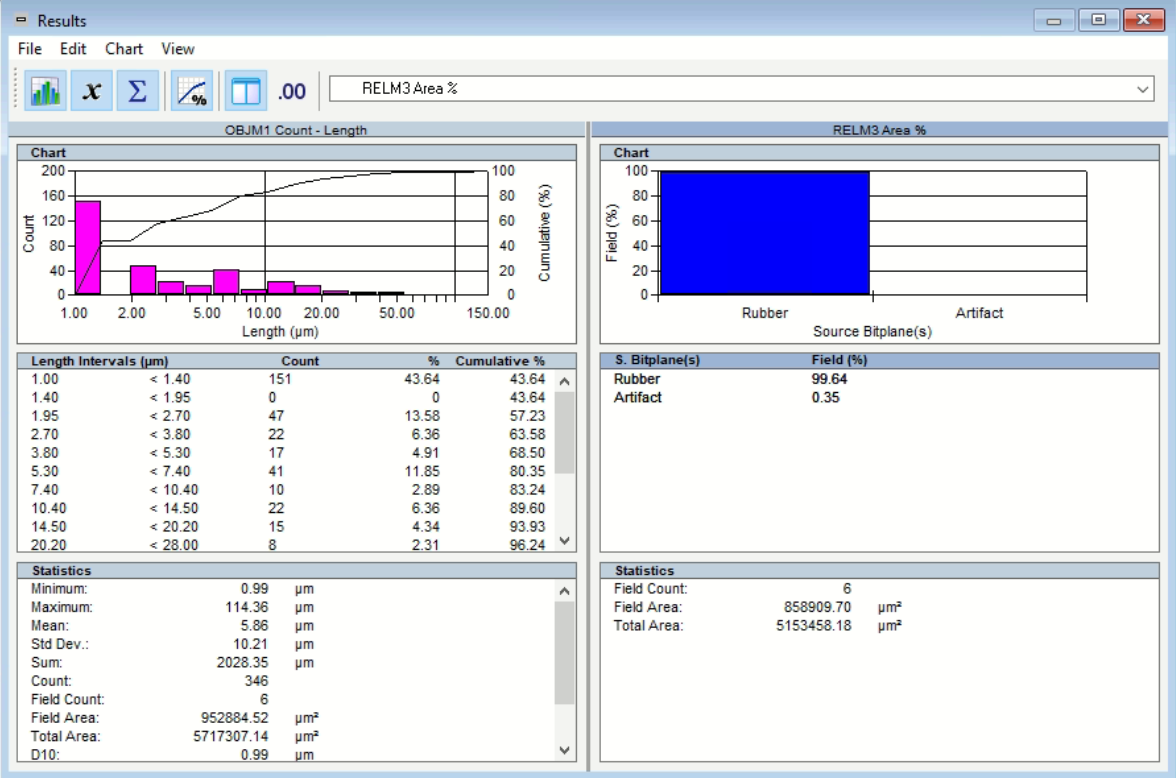
Using Clemex Studio, all features are correctly segmented. Clemex Vision results can be obtained adequately with the help of a plugin. The current study examines a total of six images. The final measurement is shown below using the Phase Analysis routine template. The process frame is used to prevent the SEM info box from being analyzed.